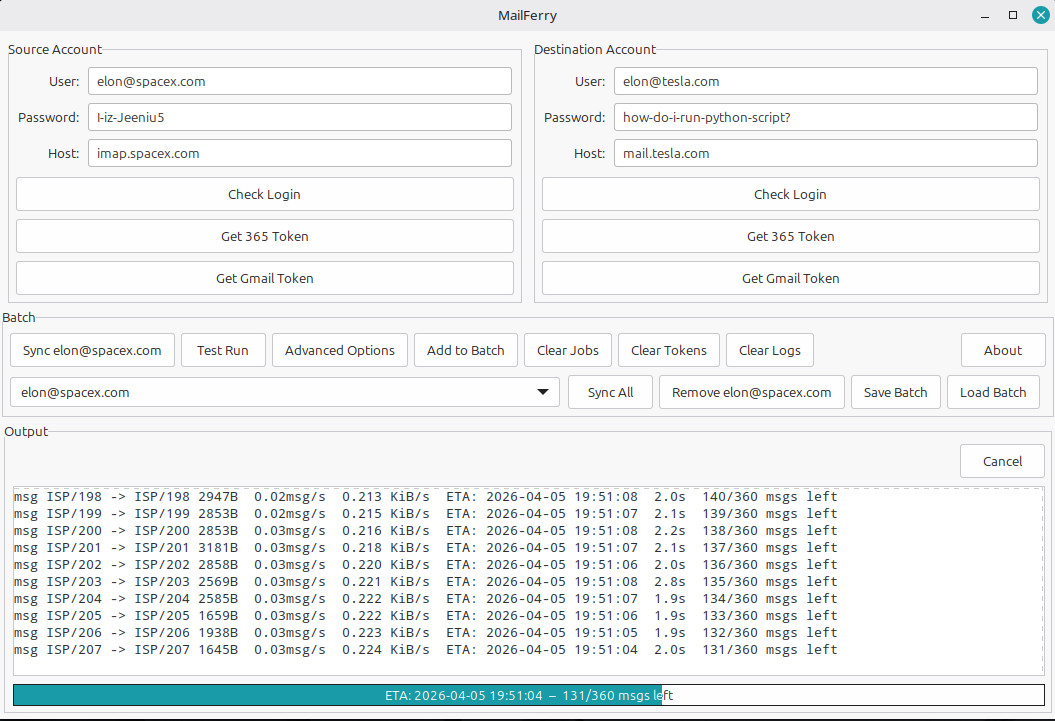
MailFerry puts a clean, intuitive interface around powerful IMAP synchronisation technology. Move mailboxes between any mail servers — including Microsoft 365 and Google Workspace — with full OAuth2 support, batch processing, and complete control over the migration.
Whether you're migrating a single inbox or rolling out a company-wide platform transition, MailFerry handles the job with minimal setup and maximum visibility.
Migrate an entire organisation's email history during a platform switch. Run overnight in batch mode — MailFerry handles token refresh, folder mapping, and keeps going if connectivity hiccups.
Onboarding a new staff member or moving an individual to a new provider? Enter source and destination, click Sync — done. No scripting, no command-line tools required.
Keep two mailboxes in sync during a parallel-run transition period. Re-run syncs at any time — MailFerry skips messages that have already been transferred.
Merging hosted mail servers after an acquisition? Batch mode lets you queue every affected account, save the job list, and run the full migration in a single supervised pass.
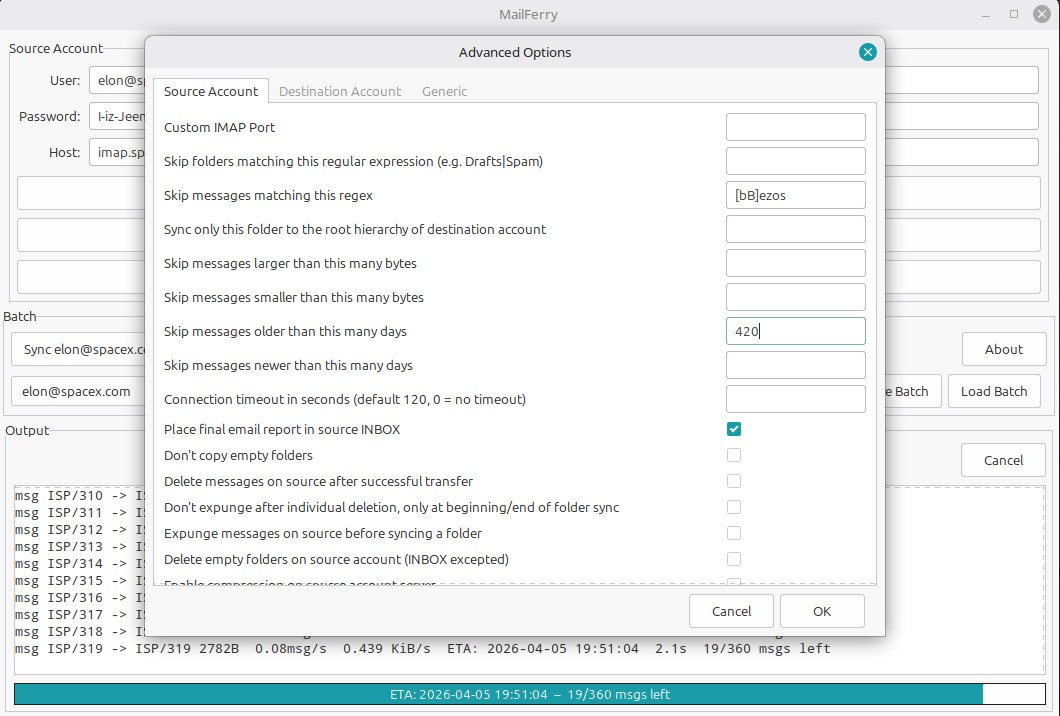
Need to migrate only certain folders, or messages within a specific date range? Advanced options give you granular control — migrate exactly what you need, nothing more.
Use Dry Run to preview the full transfer before committing, or route mail into a staging subfolder first. Validate the results, then run the final production migration with confidence.
Source and destination accounts sit side by side. Enter credentials, authenticate with OAuth2 via a standard browser flow, verify connectivity with a single click, then run.
The live output panel keeps you informed throughout — and Cancel terminates cleanly at any time. No configuration files, no command-line arguments, no manual token management.
Authenticate with Microsoft 365 and Google Workspace through standard browser-based flows. No app passwords, no legacy protocols — tokens refresh automatically.
Queue dozens of account pairs, save the list, and run the entire batch overnight. Reload saved jobs for incremental re-runs or staged migrations.
Preview every transfer before committing. See exactly which folders and messages will be affected without moving a single byte of data.
Filter by folder, date range, or message size. Handle Exchange quirks, deduplicate, throttle bandwidth, and cache transfer state for resilient long migrations.
Runs on Windows, Linux, and macOS. The Windows release is a self-contained binary — no installation, no Python, just unzip and run.
Migration output streams directly to the window in real time. Full logs available for review, troubleshooting, or compliance records.
The Advanced Options panel surfaces deep sync controls — organised into logical groups rather than an intimidating wall of settings. Fine-tune folder filtering, message selection, duplicate handling, bandwidth throttling, and Exchange compatibility without leaving the GUI.
Settings travel with each account profile in your batch list, so complex per-account configurations are saved and reused automatically.
Enter your source account server details and credentials on the left panel.
Enter your destination account details on the right panel.
Use Check Login to verify connectivity to both servers before starting.
Click Test Run to preview the transfer — review what will be moved.
Click Sync to begin. Watch the live output and click Cancel at any time.
Enter the account email address in the relevant panel.
Click Get 365 Token or Get Gmail Token — a browser window opens for secure authentication.
Once authorised, the server details fill in automatically and the button confirms the connection.
Proceed with Test Run or Sync as normal. Token refresh is handled automatically during long migrations.
Configure the first account pair and any required advanced settings.
Click Add to Batch — the pair is queued and the fields clear for the next entry.
Repeat for all accounts, then click Save Batch to preserve the list for later.
Click Sync All to run every account in sequence, or select individual accounts to run on demand.
MailFerry is licensed under the GPL v3 and comes with two CLI helper programs imapsync and oauth2_imap. It began life as a GUI extension for the redoubtable imapsync by Gilles Lamiral to make batch processing and oauth2 authentication easier and can still be used as such. It ships with python imapsync and oauth2_imap ports to make redistribution easier but if you already have the original imapsync running on your system you can use it by renaming my imapsync to imapsync.py and copying Gilles's imapsync into the MailFerry directory. The main difference is that if --subfolder1 and --subfolder2 are given the same folder name my version will copy just that folder and the original rejects this operation as unsafe. Also my version generates a more verbose --emailreport. Other than that every effort is made to keep the two versions compatible.
Self-contained executable — no Python, no dependencies, no installation. Extract the zip and run. Everything is included.
MailFerry.zipPython source distribution for Linux and macOS. Requires Python 3.8 or later and wxPython. All sync components are included.
MailFerry.tar.gzDownload and extract MailFerry.zip to a folder of your choice.
Double-click mailferry.exe — no further setup needed.
tar -xzf MailFerry.tar.gz cd MailFerry pip install wxpython dnspython requests python mailferry.py
Copyright © 2026 Steven Vertigan.
MailFerry is free software distributed under the
GNU General Public Licence v3.0.
Provided without warranty of any kind. See the licence for full terms.